Dual-booting allows you to run two operating systems on the same computer and choose which one to start during boot. Many users install Arch Linux alongside Windows 11 to combine the power of Linux with the compatibility of Windows applications.
Setting up a dual-boot system requires careful disk partitioning and bootloader configuration. When done correctly, both operating systems can coexist on the same device without affecting each other. This guide explains the essential steps to install Arch Linux alongside Windows 11 safely.
Table of Contents
Setup Overview
Dual Boot Setup Summary
| Step | Description |
|---|---|
| Backup Data | Protect important files before modifying partitions |
| Prepare Windows | Shrink the Windows partition to create free space |
| Create Boot USB | Prepare Arch Linux installation media |
| Install Arch | Install Arch Linux in the free disk space |
| Install Bootloader | Configure GRUB to detect both systems |
| Reboot System | Select operating system during startup |
Following these steps carefully helps avoid data loss and ensures both systems boot correctly.
Prepare Windows
Before installing Arch Linux, you must prepare the existing Windows installation.
- Backup Important Files
Always create a backup of your important documents before modifying disk partitions. - Disable Fast Startup
Fast Startup in Windows 11 can interfere with Linux boot processes. Disable it in the power settings. - Shrink Windows Partition
Use the Windows Disk Management tool to shrink the main Windows partition and create unallocated disk space for Arch Linux. - Check UEFI Mode
Ensure the system is running in UEFI mode, which is recommended for modern operating systems.
Creating free disk space is necessary because Arch Linux will use this area to install its own system partitions.
Create Installer
Next, prepare the Arch Linux installation media.
Download the latest installation ISO from the official website of Arch Linux.
Create a bootable USB drive using tools such as Rufus or BalenaEtcher. These applications write the ISO image to the USB drive so the computer can boot from it.
Restart the computer and enter the boot menu. Select the USB drive to launch the Arch Linux installer environment.
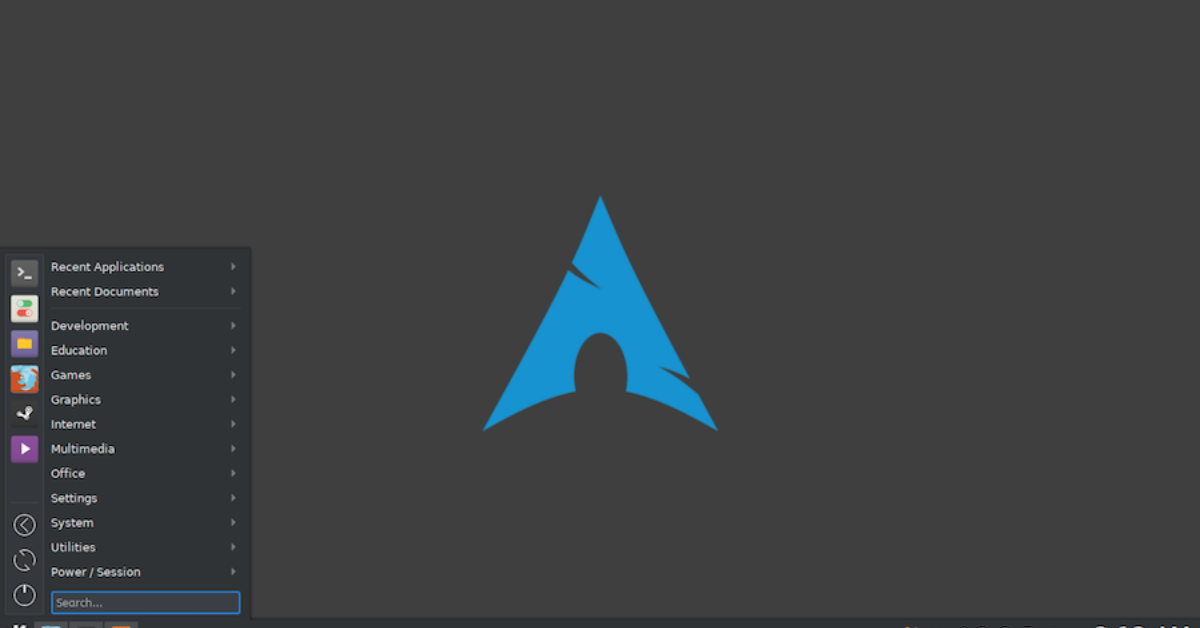
Once the installer loads, you will see the Arch command-line interface used for system installation.
Partition Setup
During installation, you must create partitions for Arch Linux without modifying the Windows partitions.
Typical partitions include:
- EFI Partition
Used by both operating systems to store bootloader files. - Root Partition
Contains the Arch Linux operating system. - Swap Partition (optional)
Provides extra memory space if system RAM becomes full.
You can create partitions using tools such as:
fdisk /dev/sda
Ensure that the Windows partitions remain unchanged while creating new partitions in the unallocated space.
Correct partitioning ensures both operating systems remain accessible.
Install System
After partitioning, mount the Arch Linux root partition and install the base system.
Run the installation command:
pacstrap /mnt base linux linux-firmware
This command installs the core operating system using the package manager Pacman.
Next, generate the file system table:
genfstab -U /mnt >> /mnt/etc/fstab
Then enter the installed system:
arch-chroot /mnt
At this stage, the Arch Linux base system is installed and ready for configuration.
Bootloader Setup
To allow both systems to appear in the boot menu, you must configure a bootloader.
Install the bootloader:
pacman -S grub os-prober
Install GRUB to the EFI system partition:
grub-install --target=x86_64-efi --efi-directory=/boot --bootloader-id=GRUB
Generate configuration files:
grub-mkconfig -o /boot/grub/grub.cfg
The bootloader GRUB will automatically detect Windows 11 and add it to the boot menu.
After rebooting, you will be able to select either Windows or Arch Linux during startup.
Desktop Install
Once the system boots into Arch Linux successfully, you can install a graphical desktop environment.
Popular choices include:
- GNOME – Modern and user-friendly interface
- KDE Plasma – Highly customizable desktop
- XFCE – Lightweight and efficient
Example installation command:
pacman -S gnome
Enable the display manager:
systemctl enable gdm
Installing a desktop environment allows users to interact with the system through a graphical interface instead of the terminal.
In Summary
Dual-booting Arch Linux with Windows 11 offers the best of both worlds. Windows provides compatibility for commercial software and games, while Arch Linux delivers a powerful and customizable environment for development and system control.
Although the setup process requires careful partitioning and bootloader configuration, it provides a flexible system where users can switch between operating systems whenever needed. With proper preparation and backups, dual-booting can be a reliable solution for users who want to explore Linux without removing Windows completely.